
Instagram and TikTok both have their own time limits, with one catch: neither of them actually blocks you. Instagram sends you a reminder, and TikTok lets you back in with a passcode. They are built to keep you inside, so their limits are easy to skip.
Here is how to use those limits, and how to set one that actually holds.
Instagram's limit: just a reminder
Instagram lets you set a daily time limit in its settings. When you reach the time you chose, it reminds you. But that is all it is, a reminder: you dismiss it and keep scrolling. The exact steps change with each version of the app, and Instagram keeps them up to date in its Help Center: "Set a daily time limit on Instagram".
TikTok's limit: skipped with a passcode
On TikTok, the limit is under Profile → Menu ☰ → Settings and privacy → Time and well-being → Screen time, where you turn on Daily screen time. When you reach it, TikTok notifies you and lets you choose between closing the app or entering the on-screen passcode to return to it. In other words, it takes two seconds to get around.
How to set a limit that actually works
A limit works when something other than the app itself enforces it. Stop Wasting Time, our app, does two things Instagram and TikTok do not:
- It blocks the app when you reach your daily limit, until the next day.
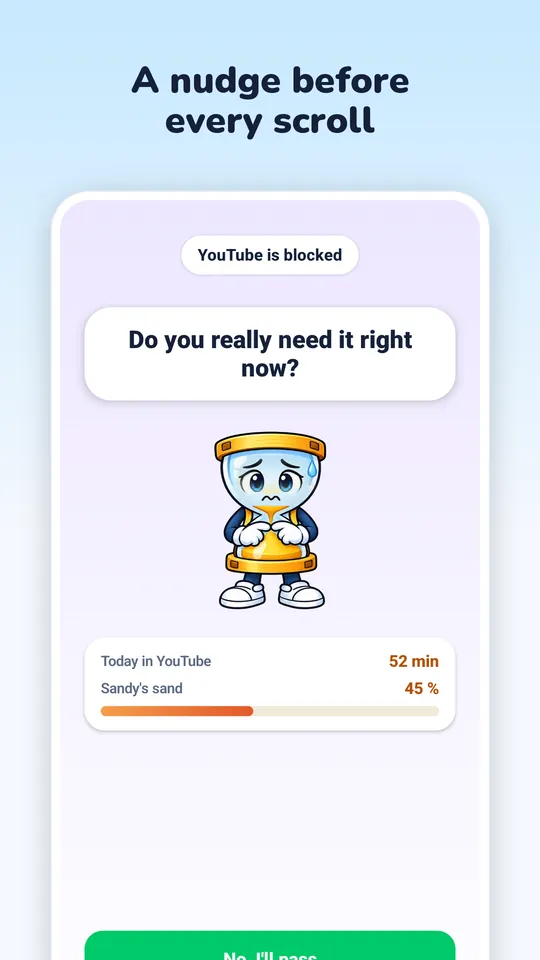
- It stops you every time you open it, with a question: "Do you really need it right now?". And it shows how long you have spent there today.
Step by step
- Install Stop Wasting Time from Google Play. It is free.
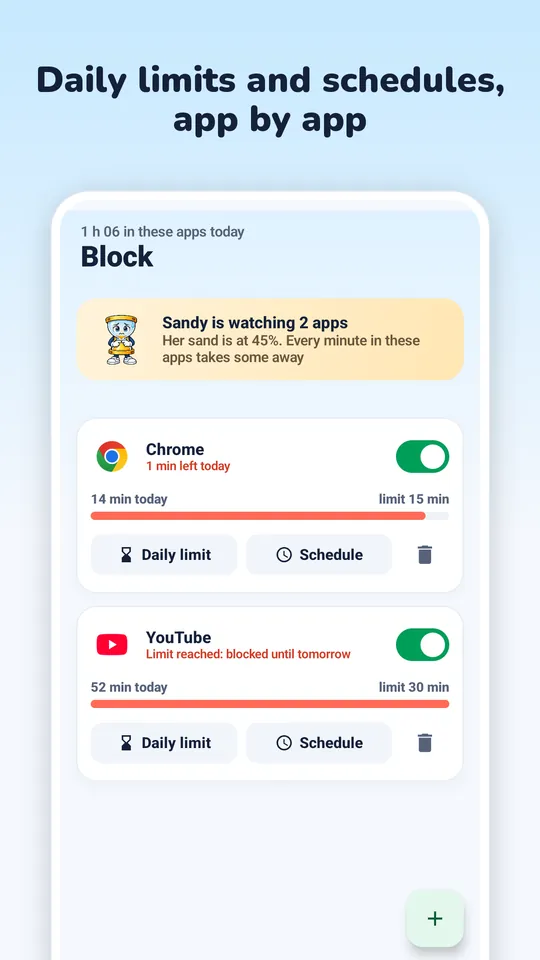
- In the Block tab, add Instagram or TikTok.
- Tap Daily limit and choose the minutes, for example 30.
- If you like, add a schedule, for example 11 pm to 7 am, so it does not eat into your sleep.
- Done. Once you have used your minutes, you will see "Limit reached: blocked until tomorrow".
And if you really need to get in, to answer a message? You can: you solve a small challenge, write why you are opening it, and it lets you in for a few minutes. That effort is exactly why, most of the time, you decide not to.
For free you can limit one app, usually the one that takes the most time. With Pro you limit as many as you want. You can try it free for 7 days.
Quick comparison
| TikTok | Stop Wasting Time | ||
|---|---|---|---|
| Daily limit | Yes | Yes | Yes |
| When you reach it | A reminder | A notice; a passcode lets you back in | The app is blocked until tomorrow |
| Stops you as you open it | No | No | Yes, with a question |
| Blocking schedule | No | No | Yes |
Tips that help
- Turn off Instagram and TikTok notifications in Settings → Notifications. Every alert is an invitation to come back.
- Move the icon off your home screen. If it is not under your thumb, you will open it less on autopilot.
- Start with a realistic limit, a bit below what you use today, and lower it over time.
Frequently asked questions
Do Instagram or TikTok know I am blocking them?
No. Stop Wasting Time runs on your phone and only detects which app opens; it does not touch your accounts.
Can I limit Instagram and TikTok at the same time?
One app for free; as many as you like with Pro. You can also use Digital Wellbeing's app timers for the second one: see how to block apps on Android.
How much time is reasonable?
There is no magic number. Check how much you use them now and start a little below that; going from three hours to one in a month is a big change.

Put a real limit on Instagram or TikTok
Stop Wasting Time blocks the app when you reach your daily limit and stops you before you open it. Free for one app.
Get it free on Google Play