
You unlock your phone to check the time and, without deciding to, you are on Instagram. Twenty minutes later you are still there. It is not a willpower problem: opening those apps has become automatic, and automatic habits are not fixed with good intentions. They are fixed by putting something in the way.
The quickest way to block an app on Android is a blocker that stops you right as you open it. Here is how to set one up for free in two minutes, and further down, what Android already offers and why it usually falls short.
What works best: a pause before the app opens
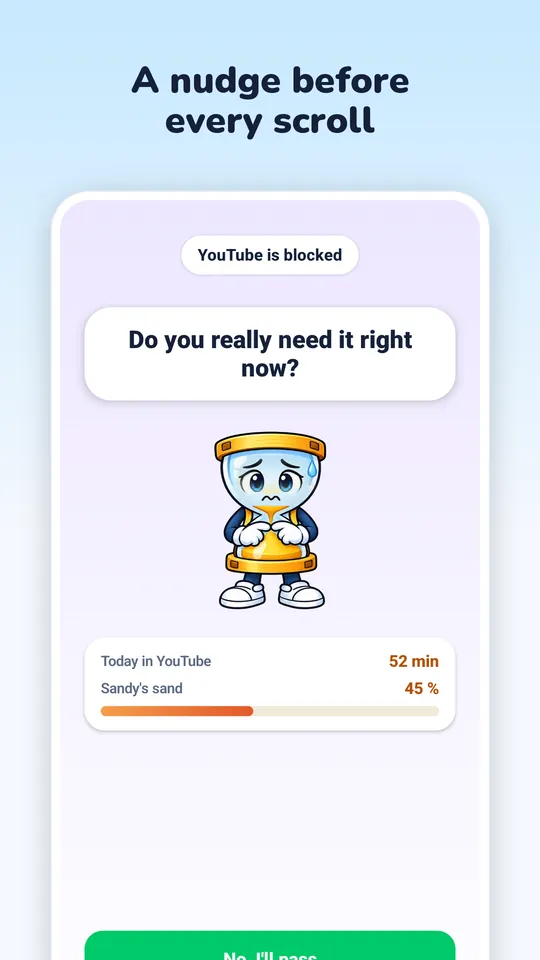
A total block works for a few days, until you get fed up and turn it off. A limit you can dismiss in two taps does not work either. What actually changes the habit is interrupting the automatic tap: when you open the app, a screen makes you stop and decide. Most of the time, that mindless tap does not survive the question.
That is what Stop Wasting Time, our app, does. When you open a blocked app, Sandy, an hourglass, asks whether you really need it right now and shows how long you have already spent in it today:
How to block an app, step by step
- Install Stop Wasting Time from Google Play. It is free.
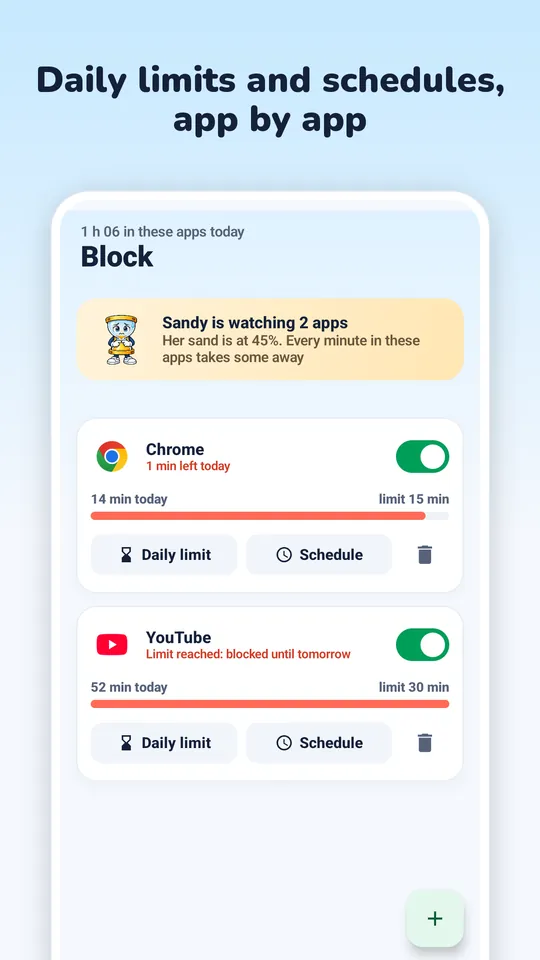
- Open the Block tab and pick the app that eats most of your time: Instagram, TikTok, YouTube…
- Grant the two permissions Android asks for: one to see how long you use each app, and the Accessibility service, so the app knows when you open it. It only sees the name of the app being opened, never what is on your screen. The app walks you through both.
- If you like, add a schedule (for example 11 pm to 7 am, or your working hours) and a daily limit in minutes.
- Done. Next time you open that app, Sandy will stop you.
If you really need to get in, you can: you solve a small challenge and write why you are opening it, and the app lets you in for a few minutes before blocking it again. That little effort is exactly why, most of the time, you decide not to.
What is free and what is Pro?
- Free: blocking one app, with a schedule, a daily limit and Sandy's pause. Plus a Pomodoro timer, habits and goals.
- Pro: block as many apps as you want, plus strict mode: during a focus session there is no way in. You can try it free for 7 days.
One blocked app already makes a difference: almost everyone has one app that takes most of their time. Start with that one.
What about without installing anything? What Android includes
Android comes with Digital Wellbeing (in Settings → Digital Wellbeing), which has two useful tools:
- App timers: tap Set timer next to an app and choose a time per day. When it runs out, the app is greyed out until midnight.
- Focus mode: pauses several apps at once, with Turn on now or Set a schedule.
They are fine to start with, but they share one problem: they are two taps away from being switched off. A timer is easy to remove, and Focus mode has a Take a break button. The day you most need it is the day you turn it off. And neither says anything at the moment you open the app, which is when it is all decided.
Digital Wellbeing vs Stop Wasting Time
| Digital Wellbeing | Stop Wasting Time | |
|---|---|---|
| Daily limit per app | Yes | Yes |
| Blocking schedule | Yes, for all apps together | Yes, per app and per day |
| Stops you as you open the app and asks | No | Yes |
| Hard to get around | No, two taps | You have to write a reason; impossible in strict mode |
| Shows how long you have spent today | In the dashboard | On the block screen itself |
| Price | Free | Free for one app |
If you want to lock an app with a password
To keep other people out of WhatsApp or your photos, use your phone's own lock:
- Android 15 or later: Private space, in Settings → Security & privacy, hides apps behind a separate lock.
- Samsung: Secure Folder keeps apps apart, protected by your PIN or fingerprint.
- Xiaomi, Realme, OPPO and OnePlus include their own app lock: search for "app lock" in Settings.
That protects your privacy, but it will not help you use an app less: you know the PIN. For that, go back to the step-by-step above.
Frequently asked questions
Do I need root?
No. Stop Wasting Time and Digital Wellbeing work on any Android phone without root.
Is it free?
Yes. Blocking one app, with a schedule and a daily limit, is free forever. Pro adds unlimited apps and strict mode, and you can try it free for 7 days.
Does the app read my messages or what I do in other apps?
No. Its accessibility service is set up so that it cannot read screen content: it only detects which app opens. Your data stays on your phone. Details are in the privacy policy.
What if I skip the block?
It happens. That is why Stop Wasting Time does not just forbid the app: it makes you stop and decide. That is less frustrating than a total block, so it lasts longer. For more ideas, read how to stop doomscrolling.

Block the app that steals the most time today
Stop Wasting Time is free for one app, with a schedule and a daily limit. It takes two minutes to set up and needs no root.
Get it free on Google Play